Good content takes time! Time for the idea, text creation, and SEO optimization (structure, headings, and keywords). It doesn't stop after publication. This is where content marketing really takes off.
Content tracking can be used to determine how well the content is received by the target group. Event tracking can also help to measure content engagement. This includes tracking copied text, known as Ctrl-C tracking.
{{divider}}
Content and event tracking
If you want to measure the performance of content on your website, you can't do without content tracking . This involves measuring important key figures that reflect the success of content. Web analytics systems such as Google Analytics offer metrics such as bounce rate and dwell time. The bounce rate is the percentage of all sessions in which visitors only generated one hit. The dwell time indicates how long a user stays on the page.
If you want to measure additional events triggered by your users, you will need to implement event tracking. This allows you to track clicks on elements such as buttons or links. Scroll tracking is also essential for measuring content engagement.
In addition to clicking and scrolling, users like to perform another action when reading texts: they copy individual terms or entire text phrases to the clipboard using Ctrl+C. This is where you can use Google Analytics and Google Tag Manager. Ctrl+C tracking allows you to measure this type of interaction.
{{divider}}
How does tracking copied text work?
How often have you copied individual terms or entire passages from a text using Ctrl+C and then forwarded them to colleagues?
Many users behave in exactly the same way on the web. Different types of content are copied. Based on my observations, the copied content can be roughly divided into three categories:
- Contact details such as telephone numbers, addresses, or email addresses
- Individual terms and item numbers
- Entire text passages
Ctrl-C tracking focuses on such use cases. As soon as a user copies text to the clipboard using Ctrl-C, an event is sent to Google Analytics via Google Tag Manager. Technically, the following happens:
- A user visits the website and highlights a section of text while reading.
- When the text is selected, a JavaScript function retrieves the selected text passage.
- The user presses "Ctrl" and "C" on the keyboard to copy the text to the clipboard.
- Another JavaScript function is executed immediately during copying. This function sends the data to the data layer of Google Tag Manager.
- When the data is sent to the dataLayer (called a "push"), an event is triggered at the same time.
- The triggered event is then a signal to send the data to Google Analytics.
In the next section, I will show you how to implement these steps in Google Tag Manager.
At this point, we would like to provide important information regarding "PII" (personally identifiable information). The focus here is on the transfer of personal data to Google Analytics. According to the Google Analytics terms and conditions, such transfers are not permitted.
Google explains this in the Google Analytics Help"Best practices for avoiding sending personally identifiable information." Since users also copy contact details, Ctrl+C tracking could send personally identifiable data to Google Analytics. The linked Google Analytics Help explains how to prevent this.
{{divider}}
Track copied texts with Google Tag Manager
Let's move on to the practical implementation of Ctrl-C tracking with Google Tag Manager. You will need the following tags, triggers, and variables:
- A custom HTML tag with the necessary JavaScript functions
- Two data layer variables
- A custom trigger
- A Google Analytics tag for the event
{{divider}}
Custom HTML tag
Earlier, I mentioned that two JavaScript functions are necessary:
- When the text is selected, a JavaScript function retrieves the selected text passage.
- Another JavaScript function is executed immediately during copying. This function sends the data to the data layer of Google Tag Manager.
In the first case, programming knowledge is not essential. On Stack Overflow , you can find a ready-made function that performs this task. For the second case, Daniel Carlbom has a solution ready. In combination, the code looks like this:
// Declare function to get selected text from document
function getSelectionText() {
var text = "";
if (window.getSelection) {
text = window.getSelection().toString();
} else if (document.selection && document.selection.type != "Control") {
text = document.selection.createRange().text;
}
return text;
}
// Declare function on copy event
document.addEventListener('copy', function(e){
dataLayer.push({
'event': 'textCopied',
'clipboardText': getSelectionText(),
'clipboardLength': getSelectionText().length
});
});
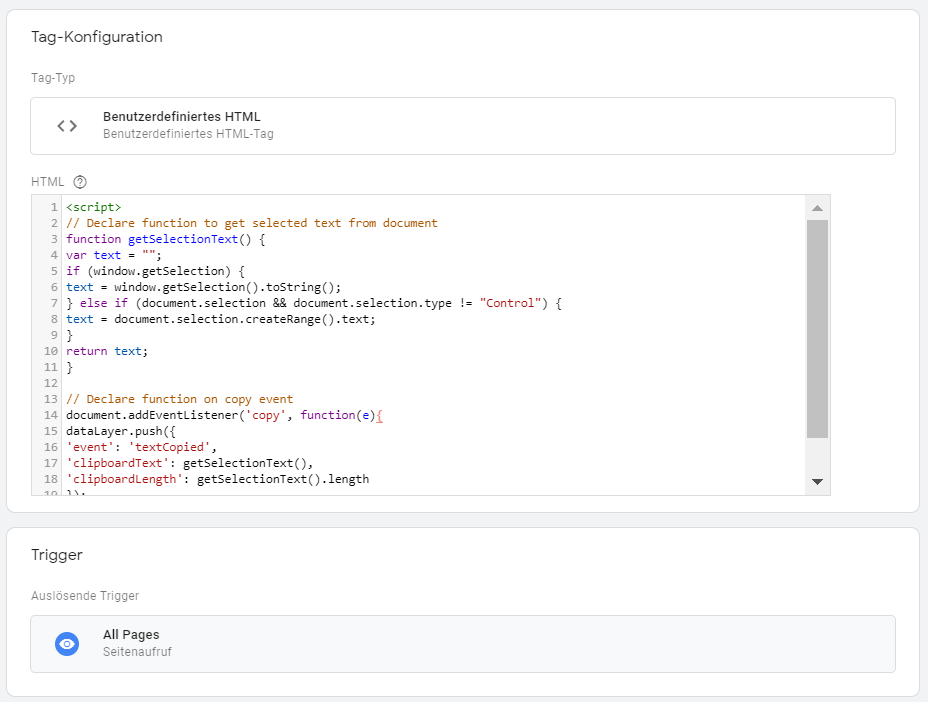
Copy this code. In Google Tag Manager, create a new tag of the type "custom HTML" and add the code. Select "All Pages" as the trigger:
{{divider}}
Data layer variables
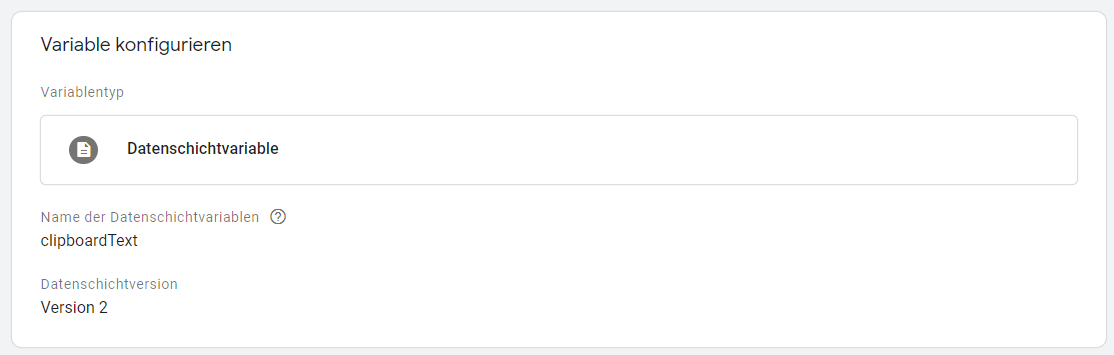
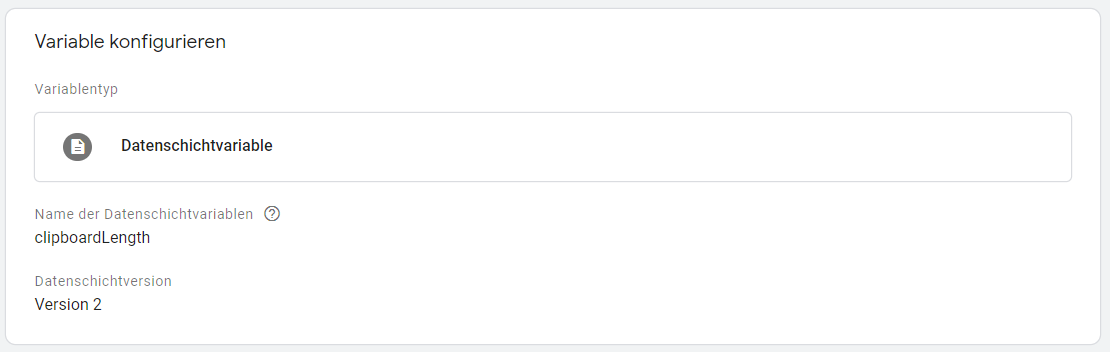
In the next step, you will need two data layer variables, which you can create under the "Variables" menu item in Google Tag Manager:
{{divider}}
Trigger
In order for our Google Analytics tag to fire, we need a trigger of the type "custom trigger":
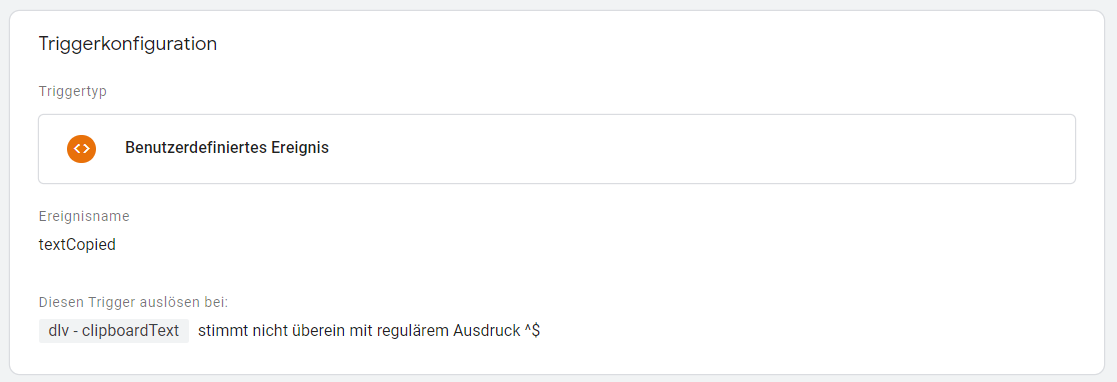
The defined condition "does not match regular expression ^$" regulates the following: The trigger should only be activated if text has actually been selected.
{{divider}}
Google Analytics Tag
As a final step, we create the Google Analytics tag for the event.
- I select "copy content" as the event category.
- The event action should be the copied text. Therefore, I select the data layer variable "clipboardText," which I have named "{{dlv – clipboardText}}."
- The event label is "{{dlv – clipboardLength}}" and returns the character length of the copied text.
- I set "Hits without interaction" to "True" so that the bounce rate is not affected.
- As the trigger, I select the previously defined custom trigger "textCopied."
- In the Google Analytics settings, I finally select my Google Analytics property.
The names can be assigned freely. The category could be "content" if you want to combine all events from the content tracking area within this designation. The label could then be "copy" for further differentiation. The data layer variable "clipboardText" is important because it returns the copied text.
In summary, my day looks like this:

That's it!
Before publishing, the implementation should be tested as usual using Google Tag Manager's preview mode. To do this, activate preview mode and open your website in the same window but in a different tab. Select some text and copy it using the keyboard shortcut "Ctrl" and "C." The event "textCopied" should be visible on the left side of the preview mode. The tag you created should appear under "Tags Fired On This Event":

Once published, the data will immediately be sent to Google Analytics. Before you start analyzing the data, here are a few technical notes on the setup:
- The copy event used is not supported by Internet Explorer. Compatibility can be checked on the Mozilla developer page .
- The copy event also responds within many mobile browsers. Anyone who copies text in the Google Chrome app is also recorded here. Safari also sent data during my test.
- The event action can quickly become lengthy when copying larger sections of text. According to Google Analytics documentation , the event action can be up to 500 bytes long. This corresponds to approximately 500 characters. Anything longer than this may be truncated by Google Analytics. This length should generally be sufficient for evaluation purposes.
{{divider}}
Evaluate copied texts in Google Analytics
In Google Analytics, you can find the data in the Behavior report. Under "Behavior" -> "Events" -> "Overview," you will first be taken to the event tracking overview page. On the right-hand side, you will find the copied texts in the "copy content" category. In the event category report, you must select "event action" as the primary dimension.
Google Analytics then provides the desired data:
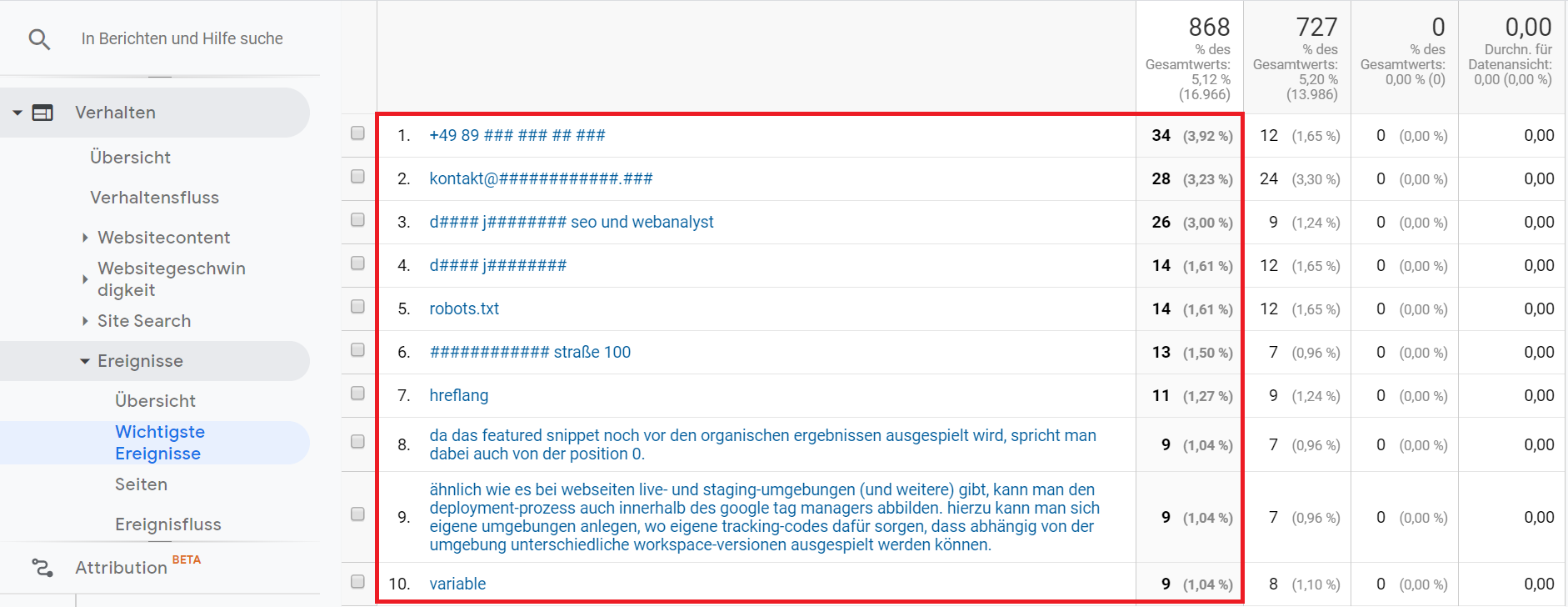
This example shows that:
- Contact details are often copied
- Individual terms are also well represented.
- Entire sentences and passages appear twice in the top 10.
{{divider}}
Data analysis and data interpretation
What do the data tell us? The interpretation can go in different directions. I initially presented three possible use cases and categorized them based on experience:
- Contact details such as phone numbers, addresses, or email addresses.
- Individual terms and item numbers.
- Entire passages of text.
Below, I will discuss the three categories in more detail and present my interpretation of the data. I would also be interested in hearing your views. What do you think? Feel free to write your comments below!
Contact details such as telephone numbers, addresses, or email addresses
Thesis: Copied contact details such as phone numbers, addresses, or email addresses are shared with colleagues and friends. Copied phone numbers are used on mobile devices to make calls. Addresses are entered into Google Maps. Email addresses are transferred to email programs.
At first glance, copied contact details would seem to be a good sign. Users could be about to make contact. A kind of "soft conversion." On the other hand, I ask myself the following questions:
- Are all phone numbers on mobile devices directly linked so that a call is initiated immediately when clicked?
- Does a map including directions need to be placed directly below the address on the contact page?
- Are all email addresses linked correctly so that the email program opens automatically when clicked?
Not all mobile browsers automatically link phone numbers. Apple's Safari does this automatically using the meta tag "format-detection". Google Chrome does not automatically link phone numbers.
You can make it easier for your users to contact you by phone by linking all phone numbers directly!
Regarding point 2: Frequently copied addresses may indicate that your users lack detailed information about the location. Including a map or detailed directions can help remedy this situation.
Email addresses are copied so that they can be used in your preferred email program to contact the sender. Clicking on the email address opens the default email client. For most users, this is Outlook or Apple Mail.
But what if the user prefers to use Gmail? As a website operator, you no longer have any influence over this. To ensure that the user is taken directly to Gmail after clicking, adjustments must be made to the user's browser settings.
Individual terms and item numbers
Thesis: Individual terms and item numbers are copied and then Googled. The user wants to know more about this and conduct further research.
I interpret copied terms and item numbers in my projects as follows:
- The terms are Googled because they need to be explained. Anyone who has a well-maintained glossary that they can link to has a clear advantage. Alternatively, the term can be explained directly in the content. If a more comprehensive explanation is necessary, links to external, trustworthy sources can be provided if necessary.
- Item numbers are also searched for on Google. The user is looking for more detailed information. A detailed product description can be a solution here. Item numbers can also be searched for on Google for price comparison purposes.
Entire text passages
Thesis: Entire passages of text are shared with others via email, chat, and social media. Or (re)used on other websites.
This is where it gets exciting, especially for SEOs. From an SEO perspective, Ctrl-C tracking can be considered "content theft tracking." Content theft is not uncommon and can occur in two ways:
- Content theft most commonly occurs via so-called scrapers. A scraper works similarly to a bot. It is a program that automatically performs tasks. One task can be copying text from the web. Text is automatically pulled from the RSS feed of the affected website. The text is then published on third-party domains. These sites are called "scraper sites."
- Not as common as automated content theft—but still prevalent—is theft using the copy-and-paste method. Here, texts are copied manually using Ctrl+C and reused on other domains. Whether the content theft is deliberate or unintentional makes no difference to the consequences.
In both cases, content theft is a major annoyance for the content creator. The consequence is external duplicate content with many risks for SEO. Automated content theft is not covered by Ctrl-C tracking...
The copy-and-paste method, however, can. If large passages of text from Google Analytics are reported in the event action, this can be an indication of content theft. There are two ways to check whether your own text is actually being reused on other domains:
- Using Google search: If the stolen text is indexed, you can place the text passage in quotation marks in the Google search bar. The search engine will then return exact match results.
- Duplicate content checkers: Tools such as Copyscape, Siteliner, or Articlechecker can also help track down content thieves.
If the Google query and/or tools don't yield any results, that can be a good sign. It doesn't always have to be content theft. On the other hand, copying several sentences can be interpreted positively:
- The user has found what they were looking for, likes the text, and shares it with colleagues via email, chat, or social media.
- Another website operator quotes you on their website. You are mentioned and, in the best case scenario, you get a backlink. The queries presented above can help you find out who provided the backlink.
As you can see, analyzing the data is the most exciting part of Strg-C tracking. The insights generated enable content marketers, SEOs, and web analysts to take further steps toward optimization.
What do you think? Do you use Google Analytics to track copied text? What interesting insights have you been able to generate?